
FrontRx
User Guide — Note templates
Document generated on September 28, 2026
Note templates
Templates control the structure and style of your generated notes. You can keep private templates, share public ones, browse a library of community templates, and set a default template for new notes.
Create a template
- Open My Note Templates and select New Note Template.
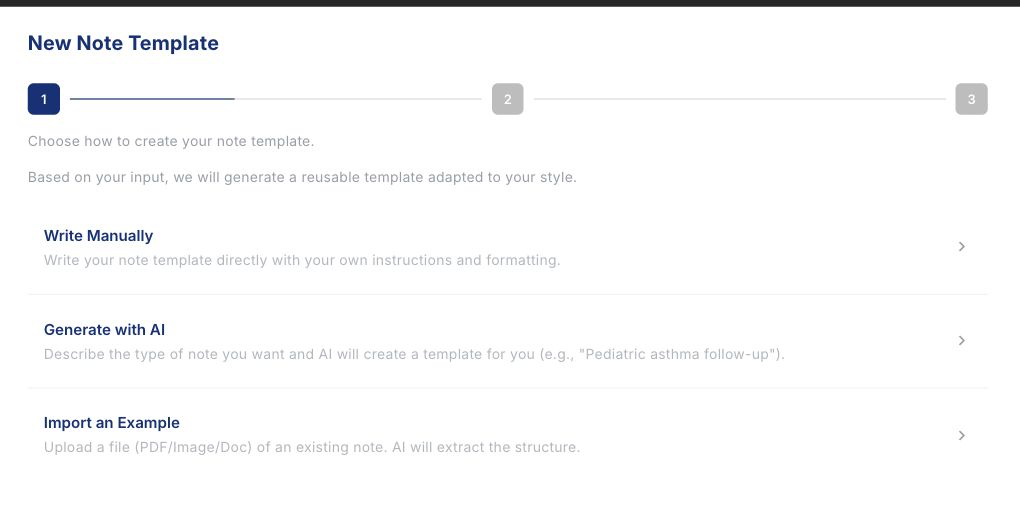
Start a note template manually, describe the intended structure, or import a synthetic example. - Choose how to start: enter content manually, describe it with an AI prompt, or upload an example note for inspiration.
- Edit the structure and example sections, then choose the document format (plain text or Markdown) and language.
- Add a name, description, note type, and specialties, set the visibility (Just me or public), and select Create.
Browse, edit, and reuse templates
- Search and filter your templates by note type, specialty, or visibility; favorites appear at the top.
- Select a template to edit its details or content, then save your changes.
- Select Browse Note Templates to open the library, and duplicate any public template into your own collection.
- Set a default template in Settings so it is used automatically when you create notes.

Contact Us
Fill up the form and our team will get back to you within 24 hours


Your information is protected.
Made in Québec, Canada with ❤️
Various trademarks held by their respective owners.
Copyright 2025-2026. All rights reserved.
